Matthew Hawkins
Software Developer
View all authors

Selenium vs Playwright for Java: testing a webforJ UI

· 8 min read

Matthew Hawkins
Software Developer

cover image

If you're about to write the first browser tests for a Java web app, the tool question comes up fast. One teammate swears by Selenium, another has heard Playwright is easier, and nobody wants to pick wrong and rewrite the suite later.

Selenium vs Playwright for Java turns out to be a gentler choice than it looks with webforJ. A webforJ app is a normal web page in the browser, so both tools drive it from plain JUnit tests, and the webforJ docs ship a working example for each. There is one real difference worth understanding, and it shapes which one suits a new suite.

Summarize PDFs with AI in Java using Spring AI and webforJ

· 9 min read
Matthew Hawkins
Software Developer

cover image

You can summarize PDFs with AI in Java by letting the user upload the file in a webforJ view, extracting the text with Spring AI's Tika reader, and sending that text to a chat model. The summary runs on a background thread, so the page stays responsive while the model works. You will build the whole process in three Java files, with no REST controller and no JavaScript. The complete app, Summarize, is on GitHub and runs with your own Gemini API key.

Spring Boot Live Reload UI: See Java Changes in Your Browser

· 8 min read
Matthew Hawkins
Software Developer

cover image

You change a label in your Java view, switch to the browser, and then wait. Stop the app, start it again, reload the page, click back to the screen you were on. Repeat that all day and a lot of development time quietly goes into waiting.

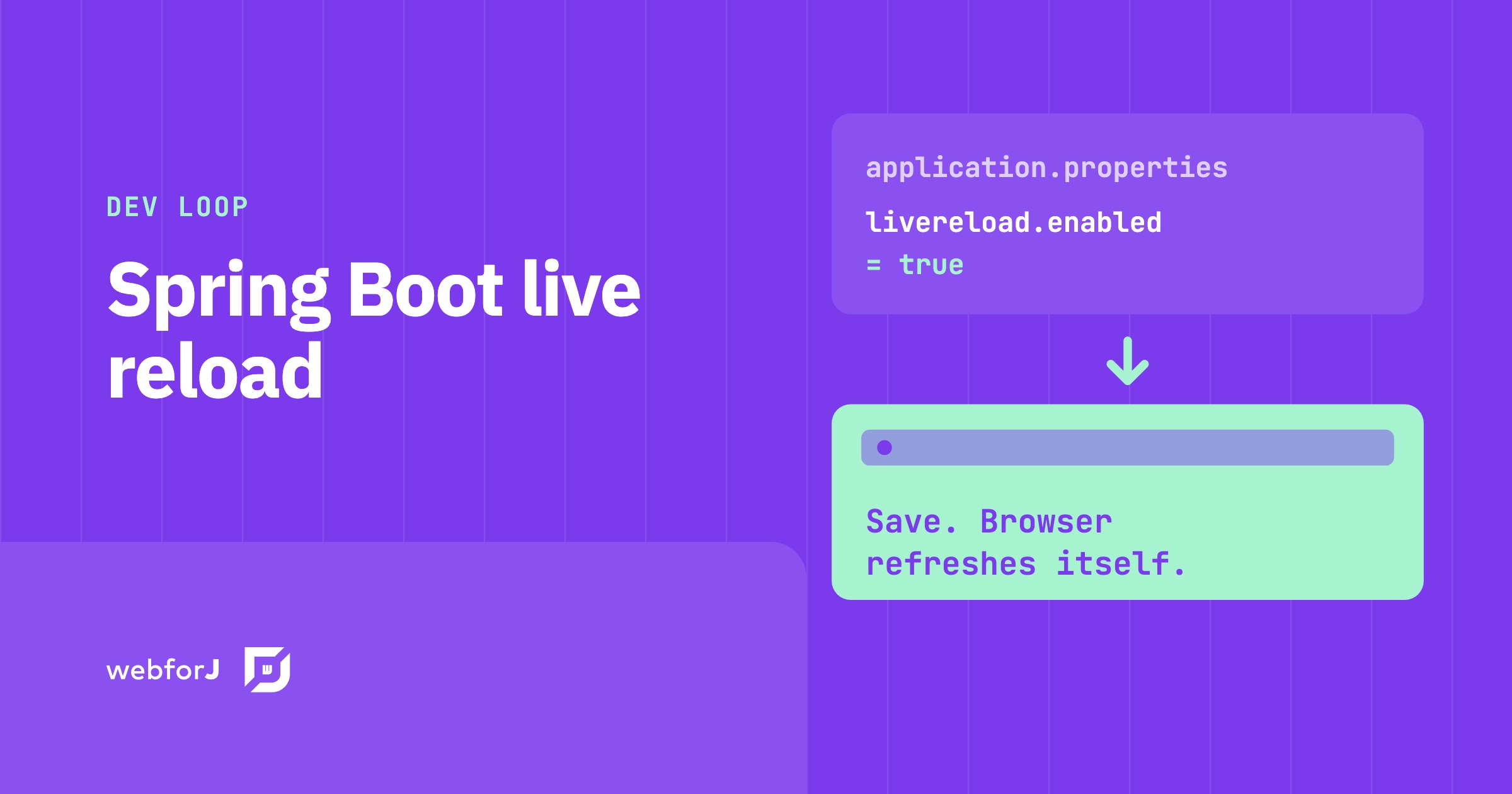
A Spring Boot live reload UI setup removes those steps. You save, the app picks up the change, and the browser refreshes on its own. In this post you'll turn it on for a webforJ app, see how each kind of change reaches the page, and look at the tools around it for CSS and for editing properties while the app runs.

Edit a running Java app with AI in craftforJ

· 7 min read
Matthew Hawkins
Software Developer

cover image

You can edit a running Java app with AI in webforJ by using the craftforJ AI assistant. The assistant works inside the app that is open in your browser. It writes the Java for a change, compiles that Java before you see it, and applies the change to your source once you approve it. You describe the change in plain language, and the assistant works from the live components rather than a guess made from your files.

This post walks through how that loop works. You will turn on the two settings that enable craftforJ, pick a component in the running app, and see what happens when you ask the assistant for a change.

MCP Apps in Java: show a webforJ UI inside AI chat

· 10 min read
Matthew Hawkins
Software Developer

cover image

To build an MCP app in Java with webforJ, add @McpApp to a routed view and an MCP host such as Claude Desktop can open that view inside its conversation, with the same components, services, and state your app already has. The AI can pass input when it opens the view, call actions on it, and receive context from what the person clicks.

An MCP server in Java usually returns text or JSON. With webforJ it can return a live interface instead. You write the view in Java, and the MCP host renders it next to the chat.

Lazy load tree in Java: children on expand with webforJ

· 6 min read
Matthew Hawkins
Software Developer

cover image

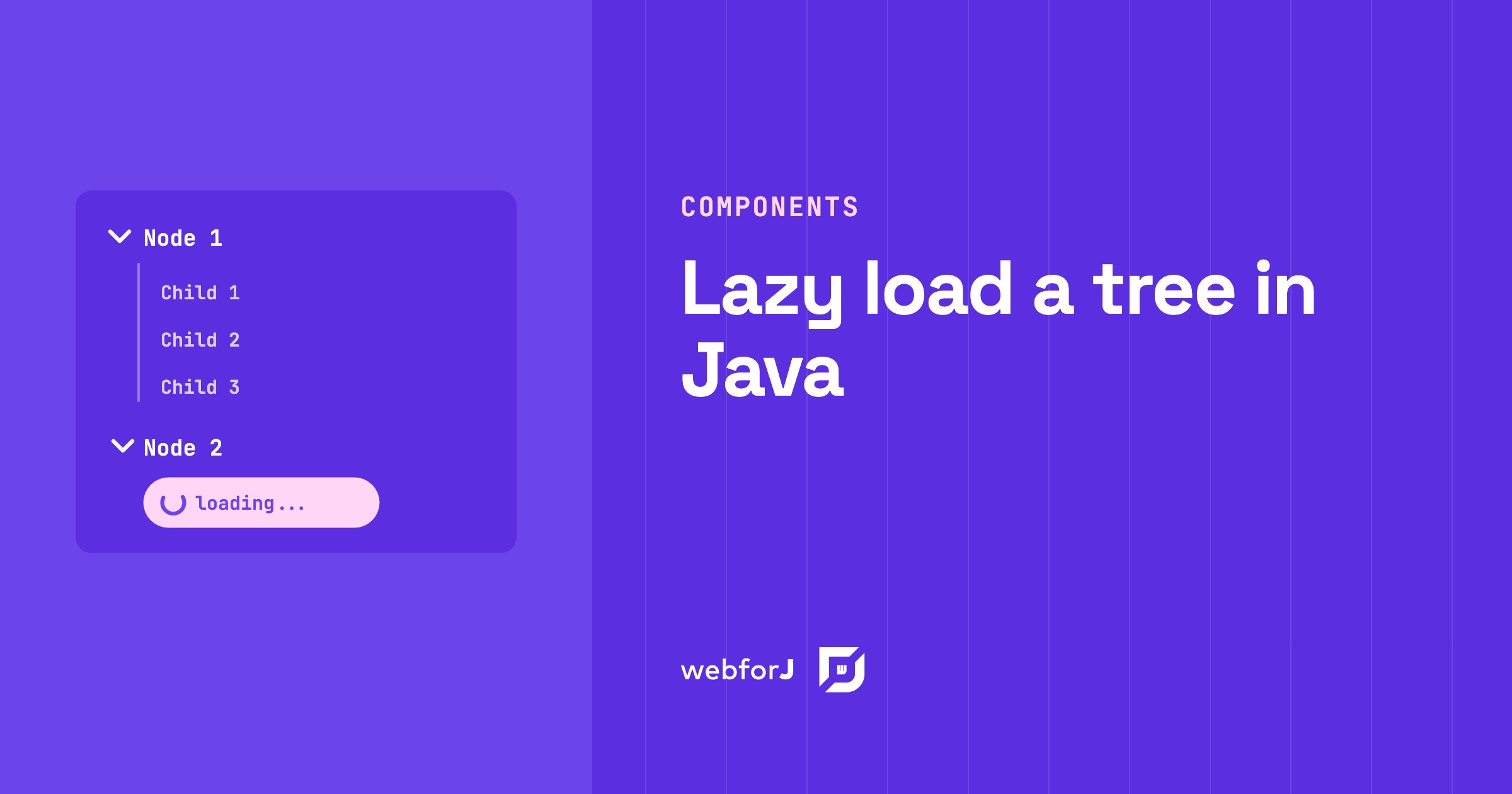
A project browser with thousands of folders shouldn't make users wait while every branch loads up front. Most of those folders never get opened.

To lazy load a tree in Java, give every folder a placeholder child and fetch the real children only when the user expands it. The webforJ Tree component fires an expand event at exactly that moment, so your server builds only the branches people open. This guide builds it in two steps: the placeholder, then the expand handler.

ZK framework alternative: a Java-only path with webforJ

· 7 min read
Matthew Hawkins
Software Developer

cover image

Your team has a ZK app that works. Screens are written in ZUL, the logic sits in composers or view models, and a change to one form means opening more than one file. If you are searching for a ZK framework alternative that keeps the server side model but drops the markup layer, webforJ, the full-stack Java framework, is built for that. Every screen is a Java class, with no ZUL and no XML, and you can move over one screen at a time.

Java Form Validation in webforJ: A BindingContext Guide

· 8 min read
Matthew Hawkins
Software Developer

cover image

Java form validation in webforJ comes down to one object: the BindingContext. You annotate a plain Java bean with Jakarta Validation constraints, bind your form fields to it by name, and the context validates every field as the user types, shows the error under the field, and writes to the bean only when everything passes.

This guide builds a complete workspace signup form that way. You get automatic form data binding in Java, a custom validator, a type transformer, control over when errors appear, and working save and reset buttons. No JavaScript is involved.

Server-side UI framework for Java: how webforJ works

· 9 min read
Matthew Hawkins
Software Developer

cover image

webforJ is a full-stack Java framework, and its UI model is a server-side UI framework for Java. Your components are Java objects that run on the server, the browser renders them as web components, and user actions come back to your Java event handlers. There is no JavaScript app to write, no REST layer between the screen and your services, and your UI code never leaves the server.

This post explains the runtime model step by step: where components live, how events travel, which thread runs your code, and where state is kept. It also covers the trade-offs of a server-driven UI and how webforJ handles each one.

Java responsive web app layout: side navigation in webforJ

· 7 min read
Matthew Hawkins
Software Developer

cover image

The quickest way to build a responsive Java web app layout in webforJ is AppLayout for the shell, AppNav for the side navigation, and ColumnsLayout or FlexLayout for the content. AppLayout gives you a fixed header and footer plus a drawer that turns into a popover on narrow screens. Everything is plain Java and every view is a route.

This guide builds the whole shell in one pass: the drawer and its breakpoint, navigation linked to routes, a content grid that changes column count with the viewport, and what happens on a phone.

JBang Java web app: a webforJ UI in a single file

· 7 min read
Matthew Hawkins
Software Developer

cover image

Sometimes you want to try an idea in a browser without setting up a project first. No pom.xml, no folder layout, no build tool, just a file you can run, share in a chat, or throw away when you're done.

A JBang Java web app gives you exactly that. With webforJ, one .java file holds the whole web UI, built from Java components instead of HTML templates. JBang compiles it, starts the server and opens your browser with one command.

Multi-select in Java UI: ListBox and ChoiceBox with webforJ

· 6 min read
Matthew Hawkins
Software Developer

cover image

A multi-select Java UI in webforJ is a ListBox with its selection mode set to MULTIPLE. The user holds Shift, Control or Command to pick several items, and your Java code reads the chosen values with getSelectedKeys(). When the user should pick exactly one value from a fixed set, a ChoiceBox is the better fit. In this guide you build both, read and set the selection from Java, and learn when each component is the right one.